Overview
This article provides step-by-step instructions for Faculty members, specifically Homeroom Advisers, on how to encode and manage student attendance for their advised section.
Accessing the Homeroom Attendance Module
Access to the attendance module is available only to faculty members assigned as Homeroom Advisers.
- From the Faculty Portal dashboard, click the Homeroom Sections tile.
- On the Homeroom Sections page, locate the desired advised section.
- Click the Attendance Records button.
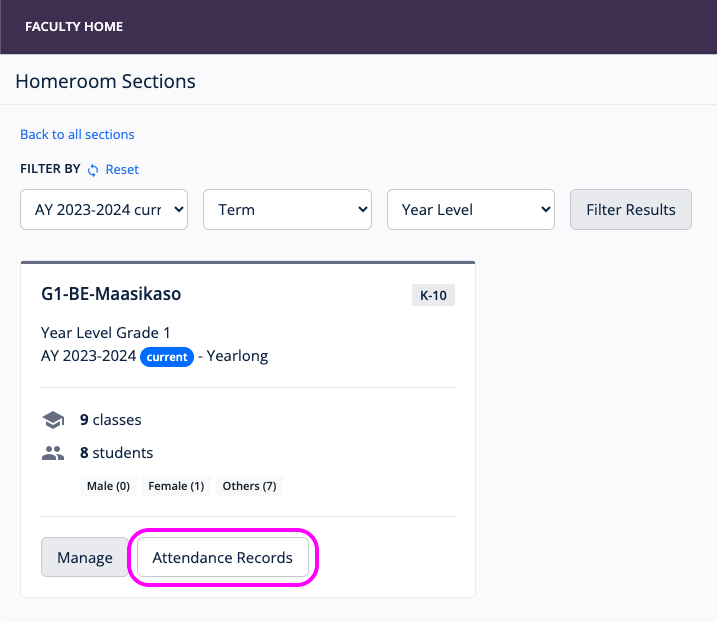
Navigating the Attendance Sheet
- To switch between Month view (loaded by default) or Week view, click the Month | Week view buttons located at the top right of the attendance table.

- To go to the next or previous month or week (depending on the view selected), use the navigation arrows beside the Month | Week view buttons. To return to the current date, click the Today button.
- To go to a particular date, use the date search field on the top left of the attendance table. Note that this is only useful if view is to Week. To search a specific date of the current month, consider using the horizontal scrollbar instead.

- By default, weekends are hidden from default view. To show them, click the Show/Hide Weekends toggle button.
Updating the Attendance Sheet
- At the top right corner, click the Update Attendance sheet link.
- The Edit Attendance page will open, set to the current week.
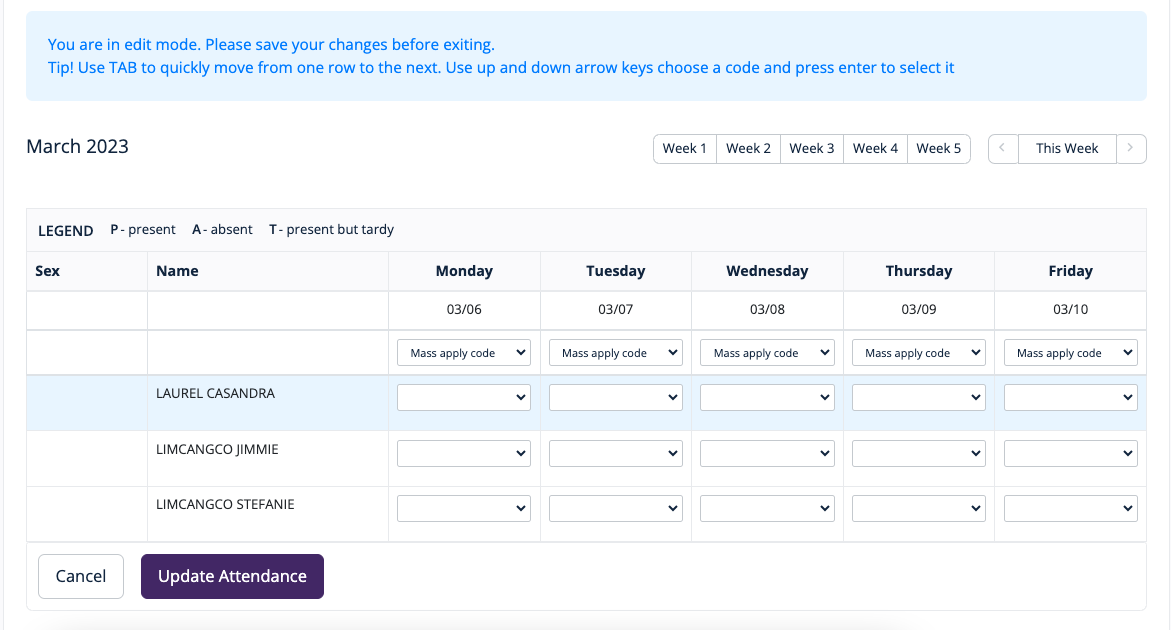
- Use the navigation arrows or date search field to select the correct date for encoding.
- For a specific student, click the dropdown field corresponding to the correct day.
- Choose an attendance code from the list (e.g., Present, Absent, Tardy)
- When done, click the Update Attendance button to save all changes.
Downloading Attendance CSV file
Attendance records can be downloaded as a comma-separated values (CSV) file, which can be opened using any spreadsheet or text-editor program. The CSV file that will be downloaded will be populated based on the current month view selected by the user.
- In the Section Attendance Sheet, click the CSV link, located on the upper right side of the page.
- Depending the browser, the file will be automatically saved, or the user will be asked where the file is going to be saved.
Generating an Attendance PDF report
A PDF version of the attendance records can be generated. Only dates with attendance updates will be included in the generated PDF report file. Similar to the CSV file (see above), the PDF file generated will be based on the current month view selected by the user.
- In the Section Attendance Sheet, click the PDF link, located on the upper right side of the page.
- After a few moments, a PDF version of the attendance will be generated, and depending on the browser, will be displayed in the browser, or will prompt the user to select a location to save the file.
💡 Tips and Best Practices
-
Marking All Students: To apply one code to all students for a specific day (e.g., mark all "Present"), use the dropdown field in the header row above the student list.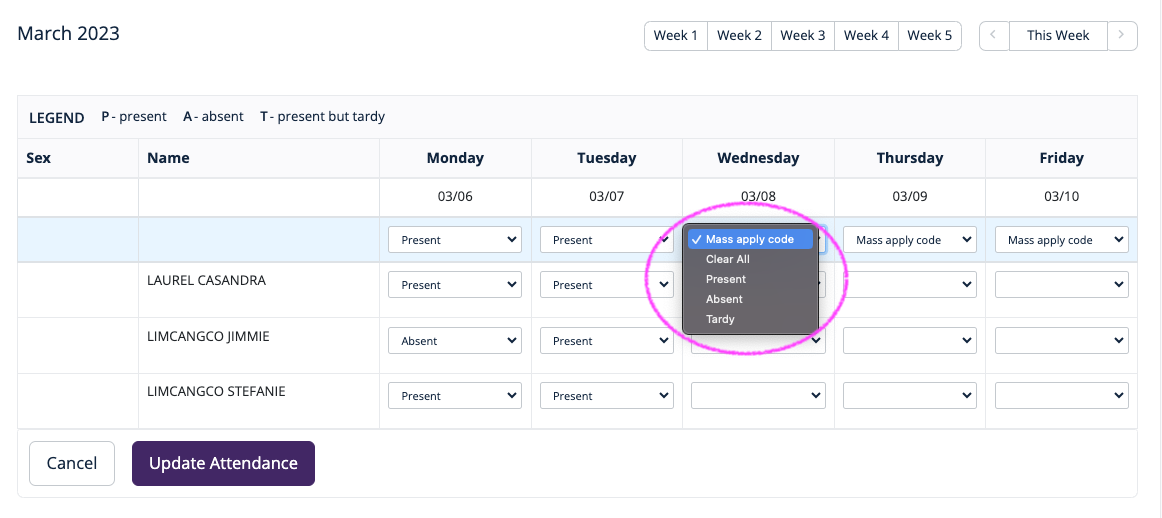
-
Weekends: Weekends are hidden by default. Click the Show/Hide Weekends toggle button if you need to update attendance for a weekend day.
-
Holidays: For holidays, leave the attendance unmarked for all students. There are no special holiday codes.
-
Save Changes: The system does not save automatically. Always click the Update Attendance button before navigating away from the page.